Showing posts with label to. Show all posts

Saturday, 17 October 2020

 FIX: Cannot type in Windows 10 Search bar. (Solved)


                         Many Windows 10 users, especially after a Windows update, cannot type in the File Explorer's search bar or in Cortana's search bar on the taskbar, because they cannot click on the search box to start typing.


In this post, you will find several methods to resolve the "Cannot type-search in Search Bar" issue in Windows 10.

Method 1: Run CTF Loader (ctfmon.exe)

The CTF Loader (ctfmon.exe), is a legitimate Windows process (ctfmon.exe), which controls the User Input and the Language bar. In some cases, the 'ctfmon.exe' process may not function properly and must be started again. To restart, the CTF Loader (ctfmon.exe) process:

1. Simultaneously press the Windows image + R keys to open run command box.
2. In run command box, copy paste the below command and press Enter: 

           C:\Windows\system32\ctfmon.exe
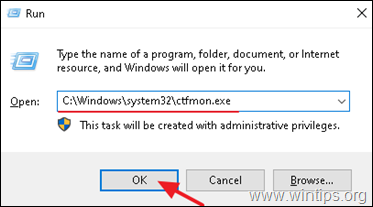
c:\Windows\system32\ctfmon.exe   
Method 2. Re-register Modern Apps.

1. Simultaneously press the Windows image + R keys to open run command box.
2. Type powershell and then press CTRL + SHIFT + ENTER

3. Inside the Administrator PowerShell window, (copy &) paste the the following   command & press Enter:

Get-AppXPackage | Foreach {Add-AppxPackage -DisableDevelopmentMode -Register "$($_.InstallLocation)\AppXManifest.xml"}


Get-AppXPackage | Foreach {Add-AppxPackage -DisableDevelopmentMode -Register "$($_.InstallLocation)\AppXManifest.xml"}


 4. When the deployment operation process is completed, ignore any errors and close the PowerShell window.
5. Reboot your computer and then try to perform a search.
 
 
That's it!
Let me know if this guide has helped you by leaving your comment about your experience. Please like and share this guide to help others.

Saturday, 5 March 2016

Installing Incompatible Android Apps from Google Play


Android developers can restrict their apps to certain devices, countries, and minimum versions of Android. However, there are ways around these restrictions, allowing you to install apps marked as “not compatible with your device.”

Note that these tricks are all unsupported by Google. These tricks require fooling Google Play, and many require root. Some of these tricks may not work properly, as Google doesn’t want us doing these things. 

Why Are Apps Incompatible?


Android developers can restrict their apps in a variety of ways:
  • Some apps are marked as only being compatible with certain phones or tablets. However, they may run just fine on unsupported devices.
  • Other apps are only allowed to be installed in certain countries. For example, you can’t install the Hulu Plus app outside the USA, and some online-banking apps are only available in the bank’s country.
  • All apps have a minimum version of Android they require. For example, Google’s Chrome browser requires Android 4.0 or higher.
         So let's get started

Bypass Device Restrictions


The new Market Helper app allows you to spoof another device without editing your build.prop file. It’s much easier, faster, and safer. (However, bear in mind that it also requires root.)
 
This app isn’t available in Google Play, so you’ll have to grab it from the developer’s website and sideload it. Once it’s installed, open the app and you’ll be able to spoof a popular device like a Samsung Galaxy S3 or a Nexus 7. You can then install apps compatible with that device. After you’re done, you can restart your device and it will appear to be itself again.

android-market-helper

Bear in mind that apps marked as incompatible may actually be incompatible with your device, so some apps may not work properly after you install them.

Click on Download

Installing Country-Restricted Apps


 Some apps are only available in certain countries. If you have forgotten to install your bank’s app before travelling or you want to install a video or music-playing app that’s not available in your country, you may be able to fool Google into thinking your device is actually in another country.


Use a VPN to Install Country-Restricted Apps


 You can use a VPN to fool Google into thinking your device is in another country. This may only work on devices without cellular connectivity, such as tablets, as Google may use the cellular network your device is on as its location.
Using a VPN doesn’t require root access.  We have previously shown you how to connect to VPNs on Android. If you need a free US or UK-based VPN, try installing the TunnelBear app. TunnelBear only gives you a certain amount of free data per month, but it should be more than enough to install a few apps.

android-tunnelbear-vpn 

Restart your Android device, connect to a VPN located in the appropriate country, and then open the Google Play app. Your device should hopefully now appear to be located in another country, allowing you to download apps available in the VPN’s country.

 ENJOY :)

Sunday, 6 October 2013

Quickest way to HIDE your IP

STEPS:


1)First of all go to the site you want to hide your ip from.Like google.com
2)Now at the beginning of google.com add “unbanip.com” and for example: 
3)Now open that url.
4)Now click on the “Hide Me” Button.
5)Thats it now your ip is changed and you can enjoy surfing with your newer ip.


   UnbanIP.com/google.com