Showing posts with label android. Show all posts

Saturday, 5 March 2016

Installing Incompatible Android Apps from Google Play


Android developers can restrict their apps to certain devices, countries, and minimum versions of Android. However, there are ways around these restrictions, allowing you to install apps marked as “not compatible with your device.”

Note that these tricks are all unsupported by Google. These tricks require fooling Google Play, and many require root. Some of these tricks may not work properly, as Google doesn’t want us doing these things. 

Why Are Apps Incompatible?


Android developers can restrict their apps in a variety of ways:
  • Some apps are marked as only being compatible with certain phones or tablets. However, they may run just fine on unsupported devices.
  • Other apps are only allowed to be installed in certain countries. For example, you can’t install the Hulu Plus app outside the USA, and some online-banking apps are only available in the bank’s country.
  • All apps have a minimum version of Android they require. For example, Google’s Chrome browser requires Android 4.0 or higher.
         So let's get started

Bypass Device Restrictions


The new Market Helper app allows you to spoof another device without editing your build.prop file. It’s much easier, faster, and safer. (However, bear in mind that it also requires root.)
 
This app isn’t available in Google Play, so you’ll have to grab it from the developer’s website and sideload it. Once it’s installed, open the app and you’ll be able to spoof a popular device like a Samsung Galaxy S3 or a Nexus 7. You can then install apps compatible with that device. After you’re done, you can restart your device and it will appear to be itself again.

android-market-helper

Bear in mind that apps marked as incompatible may actually be incompatible with your device, so some apps may not work properly after you install them.

Click on Download

Installing Country-Restricted Apps


 Some apps are only available in certain countries. If you have forgotten to install your bank’s app before travelling or you want to install a video or music-playing app that’s not available in your country, you may be able to fool Google into thinking your device is actually in another country.


Use a VPN to Install Country-Restricted Apps


 You can use a VPN to fool Google into thinking your device is in another country. This may only work on devices without cellular connectivity, such as tablets, as Google may use the cellular network your device is on as its location.
Using a VPN doesn’t require root access.  We have previously shown you how to connect to VPNs on Android. If you need a free US or UK-based VPN, try installing the TunnelBear app. TunnelBear only gives you a certain amount of free data per month, but it should be more than enough to install a few apps.

android-tunnelbear-vpn 

Restart your Android device, connect to a VPN located in the appropriate country, and then open the Google Play app. Your device should hopefully now appear to be located in another country, allowing you to download apps available in the VPN’s country.

 ENJOY :)

Tuesday, 6 January 2015

FREE UNLIMITED GPRS/3G IDEA


FREE UNLIMITED GPRS/3G IDEA


With this you can access internet for free

REQUIREMENTS :

1) Android phone

2) idea SIM card with Zero Balance

Method :


1) Download DroidVPN from Google play store

2) Activate zero rental GPRS /3G service
     
    To activate Zero rental GPRS
      
          Type ACTGPRS and SEND it to 12345(toll free)
    
    To activate Zero rental 3G
     
           Type ACT3G and SEND it to 12345(toll free)

3) Now create an account on DroidVPN and get your username          and password

4) Open DroidVPN application in your phone
    
   Click on settings>Configure account
     Enter your E-Mail and password that u registered on DroidVPN website

  Click on settings>Connection Protocol
     Select UDP.

  Click on settings > Port Setting > Set UDP Port
     Enter 9201
     click ok
We are all done...

Now select any of free server
and click Connect

After few seconds you will be connected

Enjoy Daily 100 mb free data.
For unlimited buy DroidVPN premium account.


I will be back with more new tricks....Enjoy
Don't forget to say thanks.
    

Wednesday, 13 November 2013

Unlocking / Reseting Android Moblies Phone


Forget Pattern Lock : 
Method

  • It will reset all your phones data and all security option
    •  Deletes all contacts
    • Resets patter lock
    • Removes all apps that are downloaded using internet
    • Deletes all photos in phone
    • Deletes all messages


Steps

      • Shut down your Android phone
      • Remove Battery , SIM and MMC
      • Now insert Battery
      • 1st press and hold VOLUME UP key 
      • 2nd press and hold MAIN MENU key (Don't leave volume key)
      • 3rd press and hold POWER ON key (Don't leave volume and main menu key)
      • Hold up until your phones logo is not displayed on screen
      • Leave as soon as logo appears
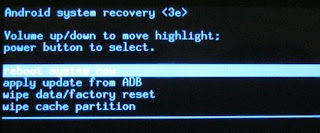
      • Now on your screen secret android menu will pop up


      • Use volume up/down key to move through options
      • use wipe data/factory reset
      • click main menu button


      • Now select Yes -- delete all users data
      • That's it, we are done.
      • Wait until it restarts follow instructions to set your phone

YOU HAVE UNLOCKED YOUR PHONE......ENJOY

Wednesday, 2 October 2013

Andriod Codes

Andriod All Codes


Secret tricking codes for Android Mobile Phones:

1. Complete Information About your Phone

*#*#4636#*#*
This code can be used to get some interesting information about your
phone and battery.It shows
following 4 menus on screen:
*. Phone information
*. Battery information
*. Battery history
*. Usage statistics

2. Factory data reset

*#*#7780#*#*
This code can be used for a factory
data reset . It'll remove following
things:
*. Google account settings stored in
yourphone
*. System and application data and
settings
*. Downloaded applications
It'll NOT remove:
*. Current system software and
bundled application
*. SD card files e.g. photos, music
files, etc.
Note: Once you give this code, you
get a prompt screenasking you to
click on "Reset phone" button. So
you get a chance to cancel your
operation.

3. Format Android Phone

*2767*3855#
Think before you give this code. This
code is used for factory format . It'll
remove all files and settings
including the internal memory
storage. It'll also reinstall the phone
firmware.
Note: Once you give this code, there
is no way to cancelthe operation
unless you remove the battery from
the phone. So think twice before
giving this code.

4. Phone Camera Update

*#*#34971539#*#*
This code is used to get information
about phone camera. It shows
following 4 menus:
*. Update camerafirmware in image
(Don't try this option)
*. Update camerafirmware in SDcard
*. Get camera firmware version
*. Get firmware update count

WARNING: Never use the first option
otherwise your phone camera will
stop workingand you'll need to take
your phone to service center to
reinstall camera firmware.

5. End Call/Power

*#*#7594#*#*
This one is my favorite one. This
code can be used to change the "
End Call / Power " button action in
your phone. Be default, if you long
press the button, it shows a screen
asking you to select any option from
Silent mode, AirPlane mode and
Power off.
You can change this action using
this code. You can enable direct
power off on thisbutton so you don't
need to waste your time in selecting
the option.

6. File Copy for Creating Backup

*#*#273283*255*663282*#*#*
This code opens a File copy screen
where you can backup your media
files e.g. Images, Sound, Video and
Voice memo.

7. Service Mode

*#*#197328640#*#*
This code can be used to enter into
Service mode. You can run various
tests and change settings in the
service mode.

8. WLAN, GPS and Bluetooth Test

Codes:
*#*#232339#*#* OR *#*#526#*#*
OR *#*#528#*#* - WLAN test (Use
"Menu" button to start various tests)
*#*#232338#*#* - Shows WiFi MAC
address
*#*#1472365#*#* - GPS test
*#*#1575#*#* - Another GPS test
*#*#232331#*#* - Bluetooth test
*#*#232337#*# - Shows Bluetooth
device address

9. Codes to get Firmware version information:

*#*#4986*2650468#*#* - PDA,
Phone, H/W, RFCallDate
*#*#1234#*#* - PDA and Phone
*#*#1111#*#* - FTA SW Version
*#*#2222#*#* - FTA HW Version
*#*#44336#*#* - PDA, Phone, CSC,
Build Time, Changelist number

10. Codes to launch various Factory Tests:

*#*#0283#*#* - Packet Loopback
*#*#0*#*#* - LCD test
*#*#0673#*#* OR *#*#0289#*#* -
Melodytest
*#*#0842#*#* - Device test
(Vibration test and BackLight test)
*#*#2663#*#* - Touch screen
version
*#*#2664#*#* - Touch screen test
*#*#0588#*#* - Proximity sensor
test
*#*#3264#*#* - RAM version


plz try @ ur own risk............

Tuesday, 1 October 2013

Bypass pattern lock on android

How to bypass pattern lock on android


Pattern lock can be easily byapssed on android using your email but what if
you forgot your email password too
here is a cool trick to unlock the pattern ..

Method 1

* Connect your device with the computer via USB cable

* Open Command Prompt and key in the exact code as displayed below:

adb shell
cd /data/data/
com.android.providers.settings/
databases
sqlite3 settings.db
update system set value=0 where
name='lock_pattern_autolock';
update system set value=0 where
name='lockscreen.lockedoutpermanently';
.quit

* Reboot your device

* You may now unlock your device providing whatever pattern you like ...

Method 2

If the above method doesn't work,
try using the following code instead:

adb shell rm /data/system/
gesture.key
Bypass-Android-Pattern-Unlock2-PC
After rebooting, unlock your device
using ay preferred pattern. As
evident from the above, neither
method disables the pattern unlock.
Instead, they just nullify the pattern
order on the lock screen

Both methods have successfully been tested using a combination of HTC Desire Z (running CyanogenMod 7.2) and Windows 7 (64-bit Edition), and a good thing about these solutions is that they work independent of, as well as in tandem with, each other, so no harm in deploying them both simultaneously.

Once you regain access in to the OS, head over to the system security settings, reselect your preferred unlock method, and you're good to go.